Shopify Theme Upgrade: What Happens to Your SEO, Custom Code and Apps?
Contents
You log in to your Shopify admin and see a small notice: a new version of your theme is available. Or your store has looked the same for four years and you are thinking about moving to Horizon, Shopify’s newer theme family. Either way, the same worry shows up. Will a Shopify theme upgrade wipe out your rankings, break the custom features a developer built, or knock out the apps you depend on?
Here is the short answer. Your products, customers, orders, URLs and most SEO settings are safe, because they live in your Shopify admin and not in your theme. What is at risk is anything written into the theme’s code: code edits, some app installs, tracking scripts, and the way the theme presents your content to Google. How much is at risk depends on whether you are updating your current theme or switching to a different one.
This guide walks through what happens in each case, what to check, and how to upgrade without losing work.
Theme Update or Theme Switch? Know Which One You Are Doing
The single biggest factor in what survives is the type of upgrade. Store owners use the word “upgrade” for three different jobs, and each one behaves differently.
Updating to a newer version of the same theme
This is when Shopify shows an update notice for the theme you already use, such as Dawn or Horizon moving to a newer release. You click Add to draft themes and Shopify builds an updated copy next to your live theme. Your live store stays untouched until you publish that copy.
According to Shopify’s guide to updating themes, anything you set up in the theme editor is copied across. That covers theme settings, sections and blocks, templates you created, app embed and app block settings, and wording changed through the content editor. Code edits come along only if they don’t conflict with the new version’s files.
Updates are only offered for themes installed from the Shopify Theme Store. If you bought your theme from an outside designer, the updates come from that designer instead.
Switching to a different theme
This covers moving from one theme to another, including the move from Dawn to Horizon that many merchants are weighing this year. Horizon uses a different, block-based structure, so there is no automatic way to carry a Dawn setup into it. Your homepage and templates start from the new theme’s defaults and you rebuild them.
In a switch, very little from the theme layer comes with you. Settings, sections, code edits and app placements all need to be set up again.
Leaving a vintage theme
Vintage themes are the older themes built before Online Store 2.0. Shopify has stopped updating them, so there is no update button to press. Moving off a vintage theme is always a switch, even if the new theme looks similar.
What carries over in each case
|
What you have |
Update to a newer version |
Switch to a new theme |
| Products, collections, customers, orders | Safe | Safe |
| URLs, redirects, SEO titles and descriptions | Safe | Safe |
| Theme editor settings, sections, templates | Copied over | Rebuild |
| App blocks and app embeds | Copied over | Turn on again in the new theme |
| Code edits in theme files | Kept only if no conflict | Reapply by hand |
| Apps that added code to theme files | Kept only if no conflict | Re-add or reinstall |
| Custom robots.txt.liquid file | Confirm it is still there | Recreate it |
What Stays Safe During Any Shopify Theme Upgrade
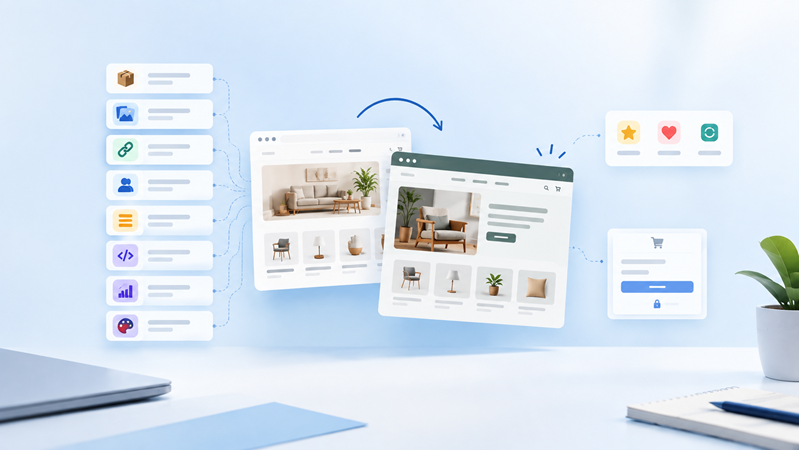
A theme is the presentation layer of your store. It decides how things look and where they appear, but it doesn’t hold your business data. Shopify states plainly that changing or switching your theme doesn’t affect the other parts of your account.
That means these stay exactly as they are, whether you update or switch:
- Products, variants, prices, inventory and product images, including the alt text saved on each image
- Collections, pages and blog posts, along with the SEO title and meta description you wrote for each one
- Your URL handles and every URL redirect you have set up
- Customers, orders, discounts and gift cards
- Navigation menus, although the new theme decides where and how deep they display
- Metafield data, although the theme has to be told where to show it
- Your checkout, which is customized in the checkout editor rather than in the theme
- Tracking pixels added through the Customer events area or through official sales channel apps, since these run separately from theme code
One detail worth holding on to: apps keep their own data. Your reviews, loyalty points and subscription records live on the app’s side. After a switch, what goes missing is usually the widget that displays them, not the data itself.
What Happens to Your Custom Code
Custom code is where most upgrade problems begin. A theme update replaces the theme’s core files with new ones. Shopify tries to carry your edits across, but it can only do that when your changes don’t clash with the new files.
When they do clash, the theme card shows a message saying the theme was added but your code edits could not be included. The updated copy arrives clean, and your edits stay behind in the old version. Shopify also warns that changes to a section’s limits, such as raising how many blocks it allows, can make the update fail outright. Merchants on the Shopify Community have reported Horizon updates that stalled until they removed their own Liquid edits first.
Where custom code usually hides
If a developer has worked on your store, or you followed a tutorial and pasted in a snippet, the changes are probably in one of these places:
- liquid, the main layout file, which often holds tracking scripts, verification tags and extra meta tags
- Product and collection section files, where custom badges, size charts or metafield content get added
- CSS files, where styling tweaks live. Shopify notes that custom CSS can stop working if the class names it targets no longer exist in the new version
- Snippets, small files added by developers or by apps
- json, where extra theme settings are defined
How to keep your code edits
Start by downloading a copy of your current theme from the Themes page. Shopify emails you a zip file of every theme file, which is your safety net if anything goes wrong.
Next, find out exactly what was changed. The Shopify App Store has theme comparison apps that show every difference between your theme and a fresh copy of the same version. If your theme is connected to GitHub, a simple file comparison does the same job. Once you have the list, you can paste each change into the updated copy and test it.
When you switch to a different theme, expect to rewrite rather than paste. The new theme has different file names and class names, so code built for the old one rarely works as it is.
For future changes, choose methods that survive upgrades. Adding code through a Custom Liquid section or an app block keeps it in the theme editor’s settings, which Shopify copies over during updates, instead of inside the core files that get replaced.
What Happens to Your Apps
What happens to an app depends on how it connects to your theme. Shopify describes three ways this can work.
- App blockssit inside a section, like a review widget under the product description. You add and move them in the theme editor.
- App embedsfloat over the page or run in the background, like a chat bubble or an analytics script. You switch them on and off in the theme editor.
- Code added to theme filesis the older method. The app, or its setup guide, places code straight into your theme.
During a version update, app blocks and app embeds come across with your other theme editor settings. Apps that added code to your files follow the same rule as any other code edit, so they are kept only if there is no conflict.
During a switch, none of this is active in the new theme by default. Shopify says you need to turn your apps on again in the new theme. For app blocks and embeds, that usually takes a few minutes in the theme editor. For apps that added code, you may need to rerun their setup or ask their support team to install them again.
Check compatibility before you commit
App blocks only work with Online Store 2.0 themes, and not every section in every theme accepts them. Newer themes can also be ahead of the apps. In early 2026, some merchants who had built their stores on Horizon found that certain cart apps did not support it yet. Before you choose a new theme, check each app’s listing or ask the developer whether it works with that theme.
Clear out what you no longer use
An upgrade is a good moment for an app review. List every app, where it shows up on the storefront, and how it is installed. Remove the ones you no longer need. Some apps leave snippets behind after you uninstall them, and those leftovers slow pages down without doing anything useful. A fresh theme version is the easiest time to leave them behind.
What Happens to Your SEO
A Shopify theme upgrade does not reset your rankings by itself. Shopify controls your URL structure, so product and collection URLs don’t change when the theme does. Your SEO titles, meta descriptions and alt text are saved with each product and page. The risk sits in how the new theme presents that information to search engines. These are the areas to compare between your old theme and the new one.
Title tags. Your SEO title is stored in the admin, but the theme decides how the final title tag is built. Some themes add your store name to the end of every title and some don’t. A change here can shift how your listings look in search results.
Headings. The theme decides which text becomes the H1. On a well-built product page it is the product name. Some themes wrap the logo in an H1 or use several H1 tags on one page, which blurs what the page is about.
Structured data. Most modern themes add product structured data, which helps Google show price and availability. If a developer added extra schema to your old theme, or a review app supplied star ratings through code, that markup can disappear after a switch. Star ratings dropping out of search results is often the first visible sign.
Speed. A new theme can make your store faster or slower. Large sliders, autoplay video and extra scripts all add weight. Test your draft theme with PageSpeed Insights before publishing, not after.
Internal links. Your menus stay the same, but a new theme might show fewer menu levels, drop some footer links, or link to products through collection paths instead of the clean /products/ URL. Canonical tags usually point Google to the right version, but clean, consistent internal links are better.
Visible content. Check that product descriptions, collection descriptions and FAQ text still appear on the page. Some themes tuck text into tabs or leave collection descriptions out of certain layouts.
robots.txt. This is the one most guides miss. If you or an app ever customized your robots.txt file, those rules live in a robots.txt.liquid file inside the theme. Shopify warns that mistakes in this file can cost you all your traffic. Publishing a different theme can change or remove the rules crawlers read, so check yourstore.com/robots.txt after any switch.
Verification tags and tracking. If you verified Google Search Console by pasting a meta tag into theme.liquid, or added Google Analytics or a tag manager by hand, that code lives in the theme. Pixels added through Customer events or official channel apps run outside the theme, which is why moving tracking there makes future upgrades easier.
There is good news too. Theme updates often include SEO and speed fixes. Dawn’s version 6 release notes, for example, listed a fix to product structured data and a fix to how the first product image loads. Staying current is often better for search than staying put.
How to Do a Shopify Theme Upgrade Safely, Step by Step
The process below works for both a version update and a full switch. The difference is how much rebuilding happens in step 5.
- Decide whether you need it now.Updates are not required. Shopify itself says upgrading can be complex and suggests checking whether your current theme still meets your needs. Good reasons to go ahead include features you want, speed improvements listed in the release notes, or a vintage theme that no longer gets updates.
- Back up everything.Download your theme file and keep a duplicate of your live theme in the theme library. Name it clearly, for example with the date.
- Record a baseline.Write down every app and where it appears. List the code changes you know about. For your ten most visited pages, note the title tag, H1, canonical tag and whether rich results show in Google. Save PageSpeed scores for your homepage, a collection page and a product page.
- Add the new version as a draft.Use Add to draft themes for an update, or add the new theme to your library for a switch. Read the release notes so you know what changed.
- Rebuild in the draft.Reapply your code edits, turn your apps back on, and re-add any verification tags, tracking code and robots.txt.liquid rules. For a switch, rebuild your templates section by section.
- Compare draft and live.Preview every key template on a phone and a desktop. Test variant pickers, add to cart, the cart drawer, search, filters and forms. Then check your baseline list: titles, headings, canonicals, structured data and speed.
- Publish at a quiet time.Pick a low-traffic day, and avoid the weeks before a big sale. The BFCM checklist for Shopify recommends finishing theme updates early and freezing theme changes about two weeks before Black Friday. Keep the old theme in your library so you can switch back in one click if something breaks.
- Watch closely for the next few weeks.In Google Search Console, check the page indexing report, Core Web Vitals and any product snippet warnings. Watch conversion rate and orders in your Shopify analytics. If rankings or rich results slip, work through a complete Shopify SEO checklist covering canonicals, headings, schema, robots.txt and redirects to find the cause.
When It Makes Sense to Get Developer Help
If you have never edited your theme code and your apps all use app blocks or embeds, a version update is usually something you can handle yourself in an afternoon.
Outside help starts to pay off in a few situations:
- Shopify tells you your code edits could not be included
- Your theme has years of custom work and nobody kept a record of it
- You are leaving a vintage theme or moving from Dawn to Horizon
- Key features, such as custom product options or metafield displays, were built by hand
- Organic search brings in a large share of your revenue
In these cases the upgrade is closer to a small Shopify theme customization project than a one-click task. A developer can compare file versions line by line, move your custom code into upgrade-friendly sections so the next update is easier, and test everything in the draft before it goes live.
Frequently Asked Questions
Will updating my Shopify theme delete my products or content?
No. Products, collections, pages, blog posts, customers and orders are stored in your Shopify admin, not in the theme. An update or a switch changes how they are displayed, not the data itself.
Does changing my Shopify theme affect SEO?
It can, but not because of the change itself. Your URLs and saved SEO fields stay the same. Rankings move when the new theme outputs different title tags, headings, structured data or page speed, or when custom code and robots.txt rules are left behind. Comparing these before you publish prevents most drops.
Can I undo a Shopify theme upgrade?
Yes, as long as you kept the old theme in your library. Publishing it again restores your previous storefront right away. Changes made in the admin since then, such as new products, stay in place.
Do I have to update my Shopify theme?
No. You can keep using your current version for as long as it works for you. The trade-off is missing new features and improvements over time. Vintage themes no longer get updates at all.
How long does a theme upgrade take?
A version update on a theme with no code edits can be done and tested in an hour or two. A theme with heavy custom code, or a full switch to a new theme, can take several days of rebuilding and testing.

Amit Porwal
CEO and FounderAmit Porwal is the CEO and Founder of Expert Village Media and Wiser AI . He’s passionate about e-commerce, and loves helping Shopify store owners boost sales with upselling, cross-selling, digital marketing, & personalized shopping experiences. With years of experience in e-commerce web development Amit believes in building simple and effective online store that actually make a difference. He is always excited to talk about the power of personalization and how he can make e-commerce smarter and more customer-friendly with the help of AI.
 US Office
 INDIA Office
 UK Office