Why Is My Shopify Store Not Converting? (And How to Fix It)
Contents
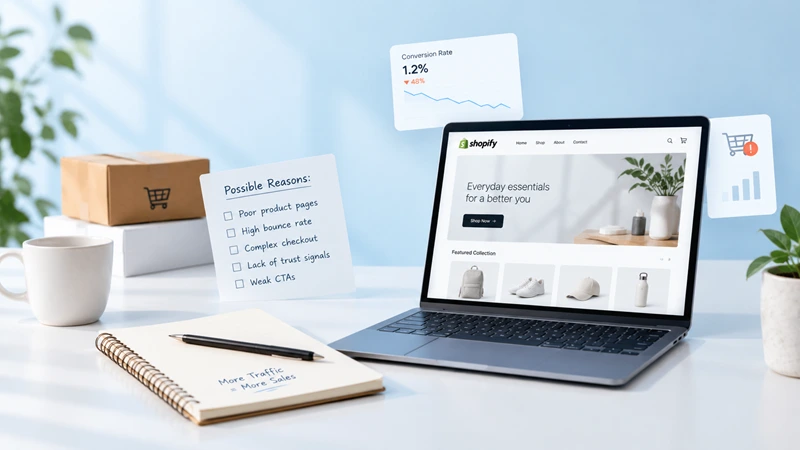
You have traffic. People land on your store every day. But the orders aren’t coming in, and each week you spend more on ads with little to show for it. If your Shopify store is not converting, you are asking the same question countless store owners type into Google: what is going wrong?
The honest answer is that it could be several things, and guessing gets expensive. Switching themes, rewriting every product page, or deciding to hire a Shopify expert before you know where shoppers give up can put money into the wrong fix. A better approach is to find the exact stage where visitors leave, then fix that stage first.
This guide shows you how to read your own numbers in Shopify, the most common reasons stores lose sales at each stage, and a simple order for fixing them.
First, Check Whether You Really Have a Conversion Problem
Know what normal looks like
Your conversion rate is the share of sessions that end in an order. The most quoted Shopify benchmark comes from Littledata’s study of about 2,800 stores. It puts the average at around 1.4% of sessions, the top 20% of stores above 3.2%, and the top 10% above 4.7%. Those figures come from 2023 data, and rates vary widely by industry, price and traffic source, so use them as a rough guide rather than a target.
A store selling $400 furniture will naturally convert lower than one selling $20 phone cases. The most useful comparison is your own store against its own past months.
Rule out the September 2026 analytics change
If your conversion rate jumped or dropped around late September, check this before you change anything. Shopify rolled out a new way of measuring sessions from September 21 to 23, 2026, including better filtering of bot traffic. Shopify explains that sessions, conversion rate and other session-based numbers can look different after the update, even when your orders and sales haven’t changed. Treat that date as a new starting point and compare like with like.
Find where shoppers drop off
Open Analytics in your Shopify admin and look at the online store conversion rate card, or the conversion rate breakdown report under Reports. Shopify splits visits into four stages:
| Stage | What it tells you |
| Sessions | How many visits your store received |
| Sessions with cart additions | Whether product pages persuade people |
| Sessions that reached checkout | Whether the cart keeps their interest |
| Sessions that completed checkout | Whether checkout lets them finish |
The stage with the biggest drop compared to your usual numbers is where to start. Filter by device and traffic source too. Very often the problem turns out to be limited to mobile visitors, or to one ad channel.
Problem 1: You Are Attracting the Wrong Visitors

If very few sessions add anything to the cart, look at who is arriving before you blame the store. Filter your conversion rate by traffic source. When one channel converts far below the rest, the issue is usually the audience, not your pages.
Common causes include:
- Broad ad targeting or boosted social posts that bring cheap clicks from people with no plan to buy
- Ads that promise one thing and land on another, such as a “summer sale” ad that opens your homepage
- Search or blog traffic for informational topics, where readers want answers rather than products
- Bot or spam visits inflating your session count
To fix it, send each ad to the most specific page that matches its promise, tighten your targeting, and judge every channel by its own conversion rate instead of the store average. Rework or pause channels that don’t convert before spending money on a redesign. A store can’t sell to people who were never going to buy.
Problem 2: Product Pages Don’t Answer the Buyer’s Questions
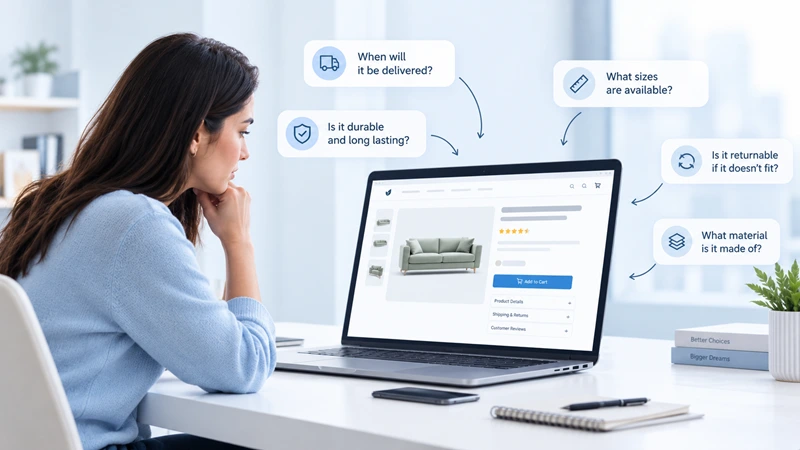
If people view products but rarely add to cart, the product page isn’t doing its job. Shoppers can’t touch the item, so the page has to answer every question they would ask in a physical shop.
Look for these gaps:
- Photos that are small, few, or all from one angle. Show scale, close-up detail, the product in use, and every color option.
- Descriptions that list features without saying why they matter. Lead with what the product does for the buyer, then give the specs.
- Missing practical details such as sizing, materials, care instructions, what’s in the box, and delivery time.
- No reviews. A page without reviews asks the shopper to take the risk alone. Even a handful of honest reviews with photos helps.
- Price without context. If you cost more than competitors, explain why, whether that’s quality, materials, warranty or service.
- Confusing variant pickers. Sold-out sizes that look selectable, or color swatches without labels, stop people at the final step.
Test it yourself on your phone. Can you tell what the product is, what it costs including delivery, when it will arrive and how returns work, without scrolling through the whole page? If not, your customers can’t either. For a deeper walkthrough of layout, copy and images, see this guide on how to optimize Shopify product pages.
Problem 3: Surprise Costs and Trust Gaps at Checkout
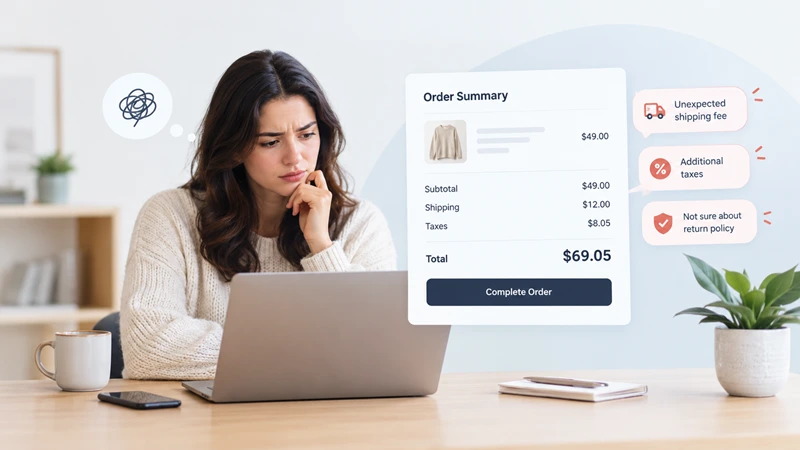
If shoppers add to cart but don’t finish, the problem sits between the cart and the order confirmation. Some drop-off here is normal. Baymard Institute’s research puts the average documented cart abandonment rate at 70.22%, and 42% of US shoppers say they have left a cart simply because they were just browsing.
The useful part is the list of reasons you can do something about. When Baymard set aside the “just browsing” group and asked US shoppers why they left during checkout, the top answers were:
| Reason for leaving | Share of shoppers |
| Extra costs too high (shipping, tax, fees) | 40% |
| Delivery was too slow | 20% |
| Didn’t trust the site with card details | 19% |
| Had to create an account | 18% |
| Checkout too long or complicated | 17% |
| Site errors or crashes | 17% |
| Returns policy wasn’t good enough | 13% |
| Couldn’t see the total cost up front | 12% |
Here is what that means for your store:
- Show shipping costs, or your free shipping threshold, on product pages and in the cart, so the first time shoppers see them isn’t at checkout
- Give a delivery estimate before checkout starts
- Keep guest checkout available and make account creation optional
- Offer the payment methods your customers expect, including express options such as Shop Pay, Apple Pay, Google Pay and PayPal where you can
- Link a plain-language returns policy close to the add to cart button
- Make sure upsell popups and cart add-ons don’t push the checkout button out of sight
Then place a test order on your own phone. It takes five minutes and often reveals a broken discount, a missing shipping zone or a slow step you would never spot from the admin.
Problem 4: The Store Is Slow or Awkward on Mobile
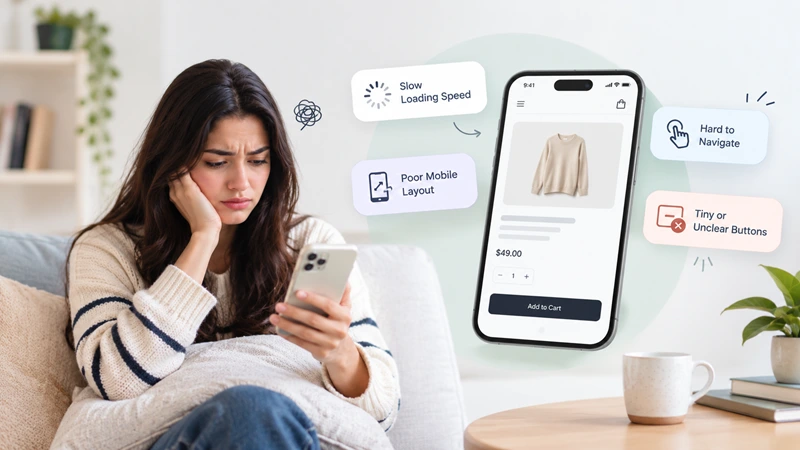
Most Shopify shoppers browse on their phones, so a store that feels fine on a laptop can still be losing sales. In your conversion breakdown, compare mobile with desktop. If mobile converts far lower, start there.
Speed. Test a product page and a collection page in Google PageSpeed Insights, not just your homepage. The usual causes of slow pages are oversized images, autoplay video, large sliders and apps that load scripts on every page. Remove apps you no longer use, since some leave code behind even after you uninstall them.
Mobile usability. Tap through your store using one thumb. Look for buttons that are too small to hit, popups that cover the page and are hard to close, text you need to zoom to read, and an add to cart button buried below a wall of images. A sticky add to cart bar on mobile product pages often helps.
If you are planning several fixes and Black Friday is close, think about timing. The BFCM checklist for Shopify recommends finishing store changes early and freezing major updates about two weeks before the sale, so you aren’t testing new code on your busiest days.
Problem 5: Shoppers Can’t Find What They Came For
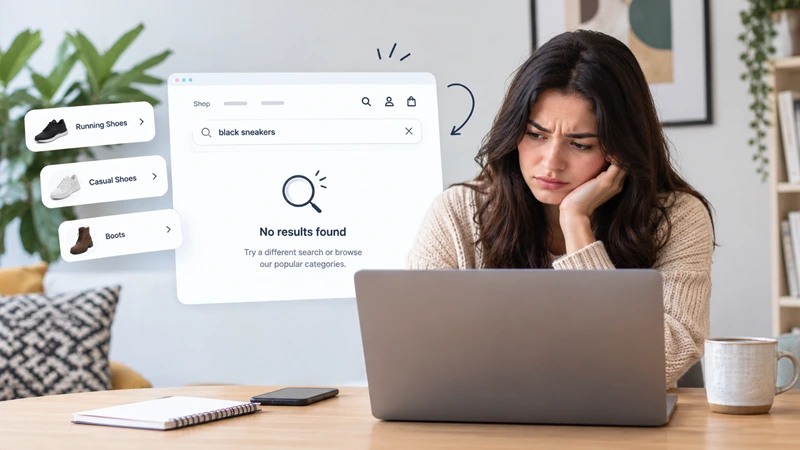
Some visitors never reach a product page at all. They land on the homepage, can’t tell what you sell or where to start, and leave.
- Homepage clarity. Within a few seconds, a new visitor should know what you sell, who it’s for, and where to click. One clear message and one main button usually beat a rotating slider of five different offers.
- Navigation. Group products the way customers think about them, not the way your warehouse stores them. Keep the main menu short and use plain names.
- Search. Shopify’s reports include online store searches that returned no results. If shoppers search for something you sell and find nothing, add the missing words to product titles, tags or search synonyms.
- Collection pages. Offer filters for what matters in your category, such as size, color and price, and put best sellers near the top.
A quick way to test this is to ask a friend who has never seen your store to find a specific product while you watch without helping. Wherever they hesitate, your customers do too.
How to Fix It: A Simple Order of Work
When a Shopify store is not converting, knowing the possible causes is only half the job. The order you fix them in matters just as much.
- Confirm the problem. Compare your conversion rate to your own past months, and allow for Shopify’s September 2026 measurement change.
- Find the leaking stage. Use the conversion breakdown, then split it by device and traffic source.
- Watch real behavior. Session recording or heatmap tools show where people hesitate, scroll past important details or tap things that don’t work. Even five recordings of mobile shoppers who left the cart can be eye-opening.
- Fix the earliest broken stage first. Every later stage depends on the one before it. Improving checkout won’t help much if hardly anyone adds to cart.
- Change one thing at a time. Give each change enough time and traffic to judge it fairly. Smaller stores may need several weeks before the results mean much.
- Keep a change log. Write down what you changed and when, so you can link any rise or fall in sales to a real cause.
Sometimes the list keeps growing: weak product pages, a confusing menu, a slow theme and a cluttered homepage all at once. At that point, patching each piece separately can cost more than rethinking how the store is put together, and a website redesign planned around your funnel data may be the more practical route.
Frequently Asked Questions
Why is my Shopify store getting traffic but no sales?
The three most common reasons are visitors who were never likely to buy, product pages that leave important questions unanswered, and costs that appear late in checkout. Your conversion breakdown in Shopify Analytics shows which of these applies by revealing the stage where most shoppers leave.
What is a good conversion rate for a Shopify store?
Littledata’s benchmark of around 2,800 stores puts the Shopify average near 1.4%, with the top 20% above 3.2%. Rates vary a lot by industry and price, so the best benchmark is your own store’s past performance.
How do I check my conversion rate in Shopify?
Go to Analytics in your Shopify admin and open the online store conversion rate card. For more detail, open Reports and look for the conversion rate breakdown and conversion rate over time reports.
Why did my Shopify conversion rate change suddenly in September 2026?
Shopify changed how it measures sessions between September 21 and 23, 2026, including how bot traffic is filtered. Because conversion rate is calculated from sessions, it can move even when orders and sales stay the same.
How long does it take to improve a Shopify conversion rate?
Quick fixes like showing shipping costs earlier or turning on express payments can show results within days. Larger changes, such as rebuilding product pages, usually need a few weeks of traffic before you can judge whether they worked.

Amit Porwal
CEO and FounderAmit Porwal is the CEO and Founder of Expert Village Media and Wiser AI . He’s passionate about e-commerce, and loves helping Shopify store owners boost sales with upselling, cross-selling, digital marketing, & personalized shopping experiences. With years of experience in e-commerce web development Amit believes in building simple and effective online store that actually make a difference. He is always excited to talk about the power of personalization and how he can make e-commerce smarter and more customer-friendly with the help of AI.
 US Office
 INDIA Office
 UK Office